When you add a numeric custom field (integer or decimal field types) to the Advanced Search module, it will display as a dropdown with operators (equals, less than, higher than, between) and one or two text inputs where visitors would enter the numbers.
For example, to add a jr_productprice custom field to the module, you would use this code:
<div class="jrFieldDiv">
  {jr_productprice_label}: {jr_productprice}
</div>
The module would allow visitors to search like this:
Higher or equal to the number specified:

Lower or equal to the number specified:

Between two specific numbers:

If you don't want visitors having to enter the numbers, you can create a custom select list with predefined number ranges and use it instead of the default inputs.
For example, instead of the default code for a numeric field, try this example:
<div class="jrFieldDiv jrLeft">
	Product Price:
	<select name="data[Field][Listing][jr_productprice]" class="jrSelect">
		<option value="">-- Select Price Range --</option>
		<option value="lower_500">$0 - $500</option>
		<option value="between_500_1000">$500 - $1000</option>
		<option value="between_1000_2000">$1000 - $2500</option>
		<option value="between_500_1000">$2500 - $5000</option>
		<option value="higher_5000">$5000+</option>
	</select>
</div>
The field will look like this in the search form:
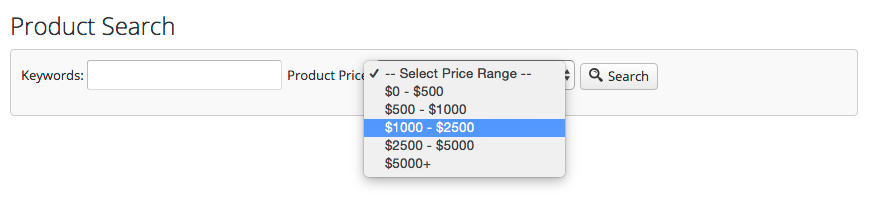
To use this approach for your custom fields, replace jr_productprice in the above code with the name of your custom field and adjust the option values based on your preference.
Note: This customization will only work in the module theme file, not in the module parameters.